 BackupWatch Docs
What you'll end up with
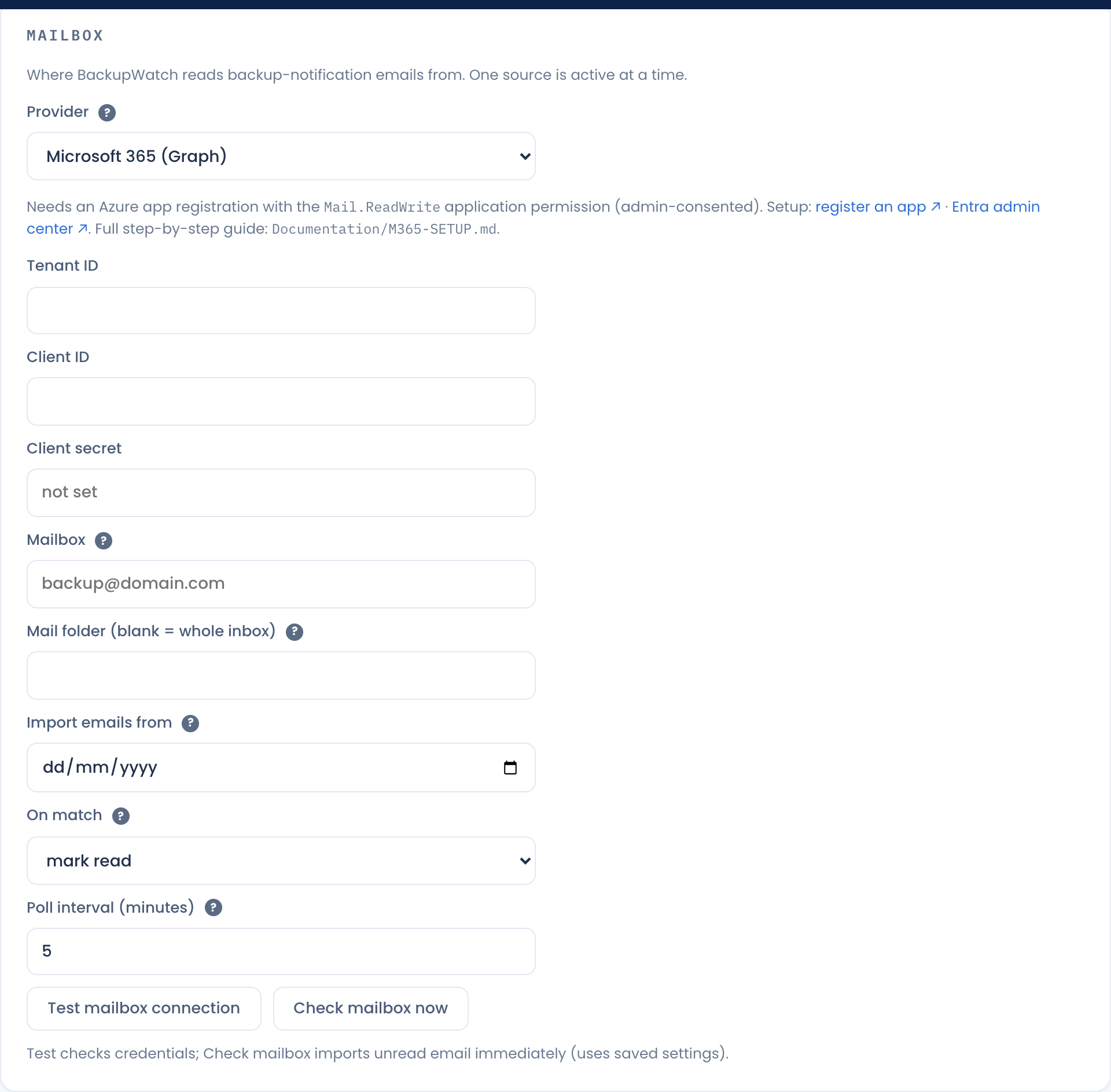
Four values to paste into Settings → Microsoft 365 (or step 2 of the setup wizard):
| Field | Where it comes from |
|---|---|
| Tenant ID | App registration → Directory (tenant) ID |
| Client ID | App registration → Application (client) ID |
| Client secret | App registration → Certificates & secrets → secret Value |
| Mailbox | The shared mailbox that receives backup notification emails, e.g. backup@yourmsp.com |
Steps
- Create the mailbox. Use a dedicated shared mailbox (e.g.
backup@yourmsp.com) and point every client's backup software at it. - Register the app. In the
Microsoft Entra admin center ↗,
go to Identity → Applications → App registrations → New registration. Name it
BackupWatch, choose single-tenant, leave the redirect URI blank. - Create a client secret. Certificates & secrets → Client secrets → New client secret. Copy the Value immediately — it's shown once. Set a reminder to rotate it before it expires; polling stops until the new secret is saved.
- Grant Mail.ReadWrite. API permissions → Add a permission → Microsoft
Graph → Application permissions →
Mail.ReadWrite→ Add, then Grant admin consent. BackupWatch needs write access because filing a matched email (mark read / move to Processed) is a write —Mail.Readalone passes the connection test but filing silently fails. - (Optional) Add Mail.Send — same place, Application permissions →
Mail.Send→ Add → Grant admin consent. This lets BackupWatch send alerts and daily summaries as the monitored mailbox, with no SMTP server or password, and it keeps working when Microsoft disables SMTP AUTH. Skip it if you'd rather send through your own relay. See Alerts & Email. - (Recommended) Lock the app to one mailbox with an Application Access Policy in Exchange Online PowerShell, so a leaked secret can only read the backup mailbox, not the whole tenant.
Configure it in BackupWatch
Paste the four values into Settings → Microsoft 365, set the mailbox address, and click
Test mailbox connection. A successful test looks like
OK — Connected to backup@yourmsp.com — inbox has 128 items.
Troubleshooting
| Message | Cause / fix |
|---|---|
| Authentication failed (401) | Wrong Tenant/Client ID or secret — or the secret expired. Re-copy the secret Value and re-paste all three fields. |
| Authenticated, but access denied | Mail.ReadWrite isn't granted/consented, or an Application Access Policy is blocking this mailbox. |
| Authenticated, but mailbox … was not found | The mailbox address is wrong or isn't a real mailbox in this tenant. |
| Could not connect / timeout | Outbound HTTPS to login.microsoftonline.com and graph.microsoft.com is blocked from the BackupWatch server. |
| Test passes but emails never leave the inbox | Only Mail.Read was granted — filing needs write access. |
Set Settings → Developer → Log level to Verbose and open Logs for
detailed poll/auth diagnostics while troubleshooting.