 BackupWatch Docs
#sec-smtp links still work
— they open the Notifications tab.
Notifications
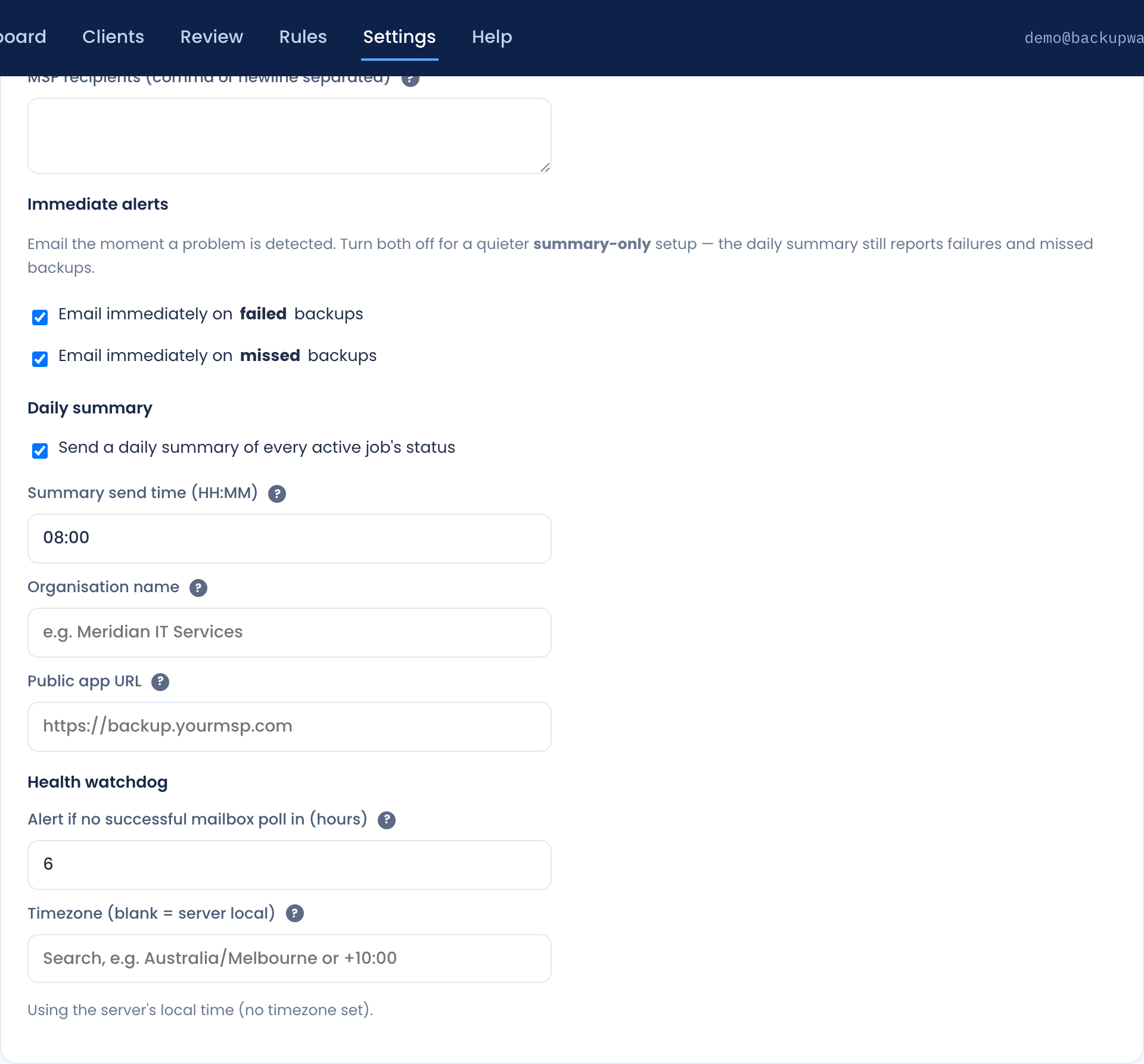
MSP recipients
Where failure and missed-backup alerts and the daily summary are sent — a comma- or newline-separated list of your team's inbox(es). With no recipients set, there is nobody to email and sending is skipped.
Immediate alerts
Two independent toggles: email immediately on failed backups, and email immediately on missed backups (a scheduled backup whose success email never arrived). Turn both off for a quieter summary-only setup — the daily summary still reports failures and missed backups.
Daily summary
One digest per day, at a time you choose, listing every active job's latest status. Two optional fields shape it: Organisation name appears at the top of the email, and Public app URL becomes the button that links staff back into BackupWatch. Leave either blank to omit it.
Health watchdog
0 to turn it off.
Timezone
The zone used for job schedules, missed-backup windows, and the daily summary. Type to
search any city/region (e.g. Australia/Melbourne) — named zones automatically
adjust for daylight saving; a fixed UTC offset does not. Leave blank to use the server's
local time.
Outbound email — two ways to send
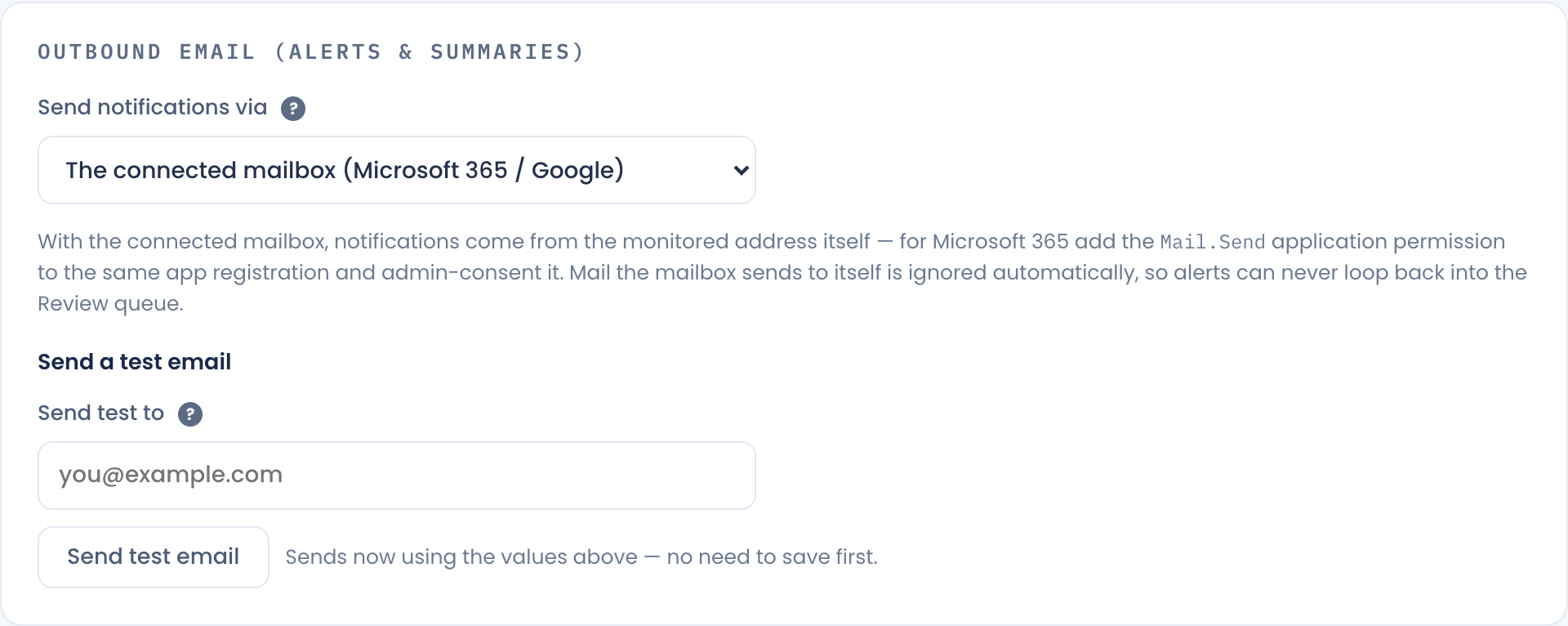
Send notifications via chooses how the mail actually leaves.
| Option | What it does | Requires |
|---|---|---|
| The connected mailbox | Sends as the same account BackupWatch reads, so alerts come from the monitored address itself. No SMTP server or second password. | Microsoft 365 (Graph), or Google connected with OAuth. |
| Separate SMTP server | Sends through any SMTP relay you nominate. | Host, port and credentials. The only option for generic IMAP mailboxes. |
Sending via the connected mailbox
For Microsoft 365, add the Mail.Send application permission
to the same Azure app registration you created for reading, and admin-consent it. Reading
alone (Mail.ReadWrite) is not enough to send.
For Google, the existing Sign in with Google connection is used — nothing further to configure. An app-password Google setup cannot send this way; use SMTP.
Sending via a separate SMTP server
| Field | Notes |
|---|---|
| Host / Port / User / Password | Your outbound mail server's connection details. |
| From | The address alerts appear to come from. |
| STARTTLS | Port 587 usually needs this on. Port 465 always uses implicit TLS and ignores the box. Leave it off only for a LAN-only relay. |
Secrets are encrypted at rest and never shown back — the password field reads "•••• stored" once set.
Send a test email
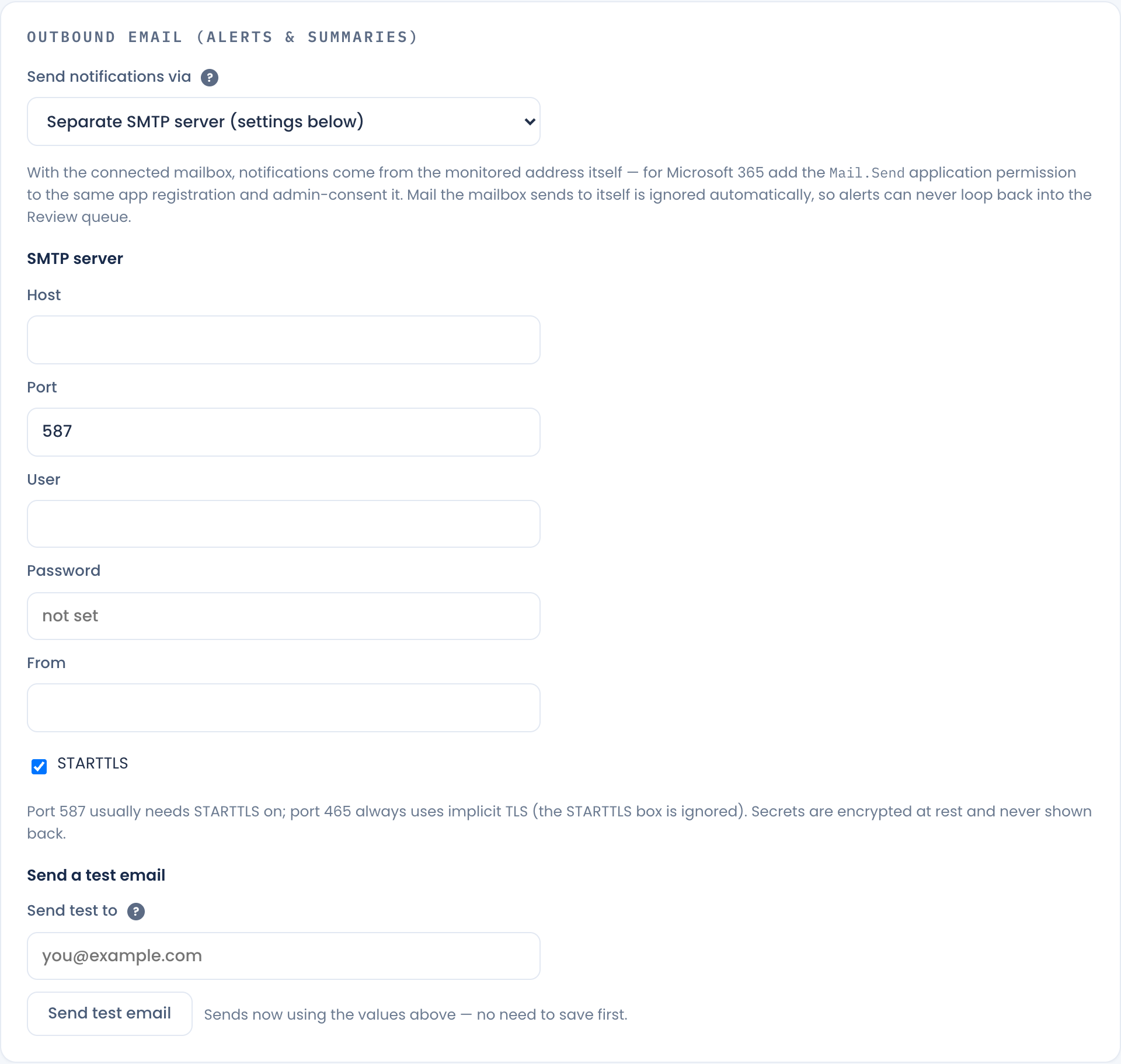
Enter an address and click Send test email. It sends immediately using the values on screen, whether or not you've saved, and tests whichever delivery path is currently selected — so it exercises Graph or Gmail when the connected mailbox is chosen, and the relay when SMTP is chosen. It does not use your alert recipients.